You can set up several proxies in the browser like this: create a profile and connect an intermediate server in each of them. That is, it all comes down to simply understanding how to create new accounts in the browser. In this article, we will tell you how to create new profiles and set up an IP address in them.
We have provided screenshots for the steps of the instructions. They are not there only where you need to perform a simple action, for example, click “OK”.
Google Chrome
Connecting an IP address in Chrome consists of 2 steps. Let's consider each of them.
Step 1
- Click on the user icon.
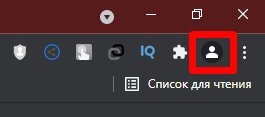
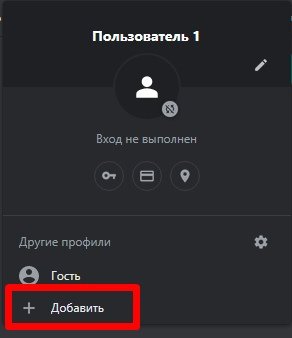
- Select "Add".
- Enter a profile name and click Finish.
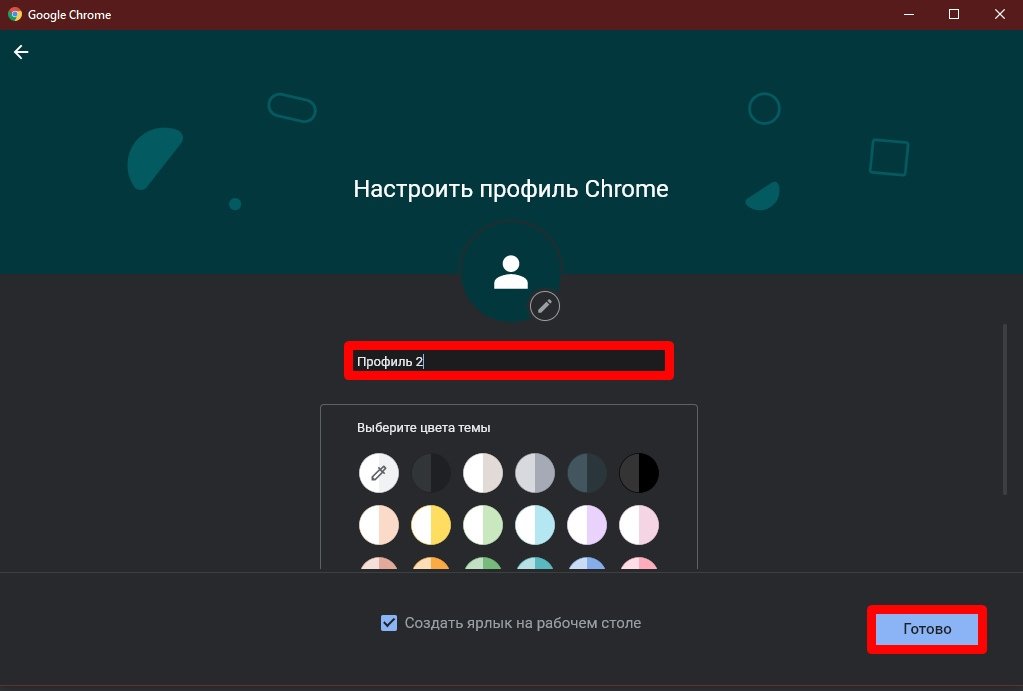
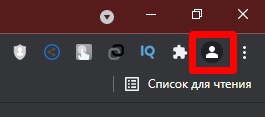
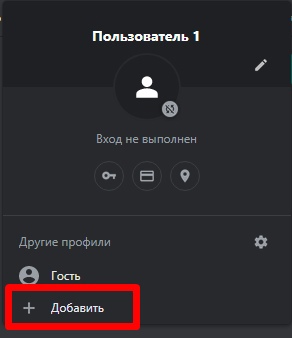
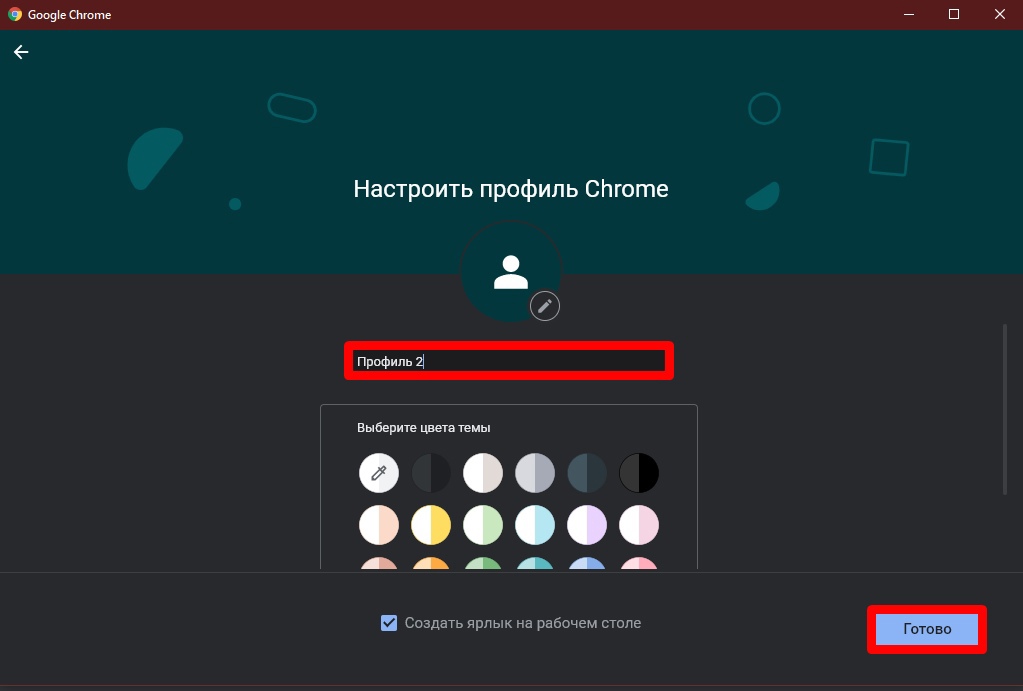
Everything, it remains only to connect the IP.
Step 2
The algorithm is this:
- Click on the three dots at the top right and open "Settings".
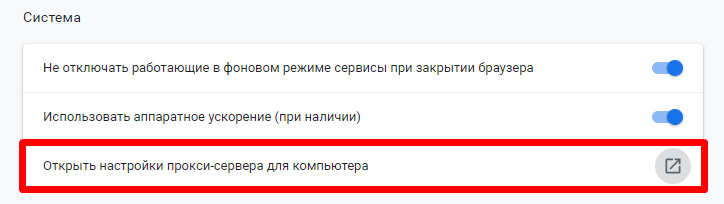
- Scroll to the very bottom and click "Open proxy server settings for your computer".
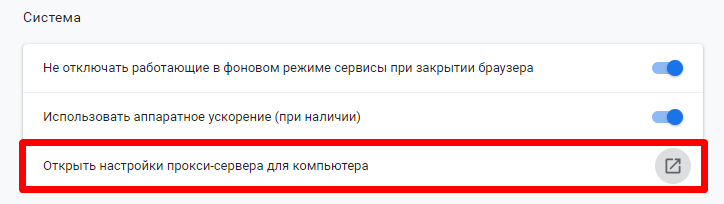
- Click "Network Settings".
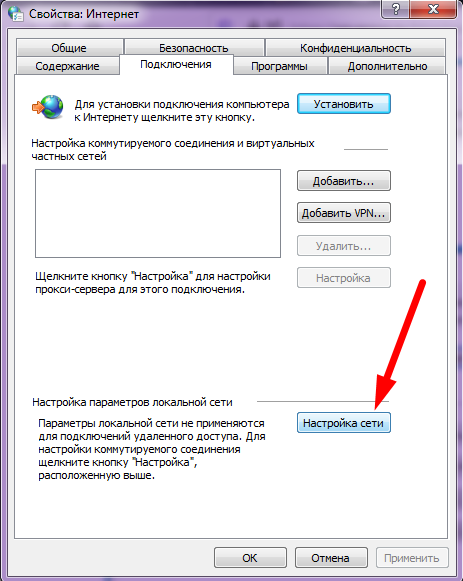
- We click "Advanced".
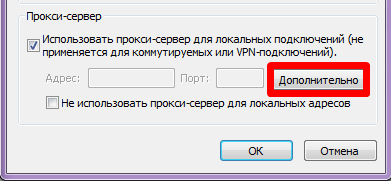
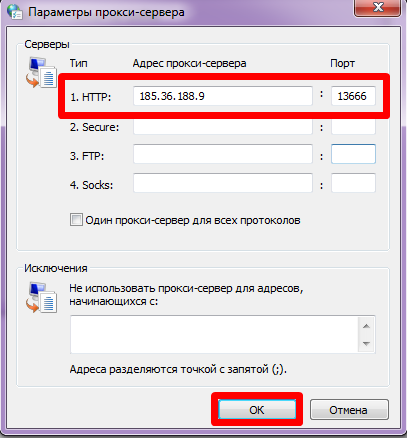
- Enter the proxy IP and port and click OK.
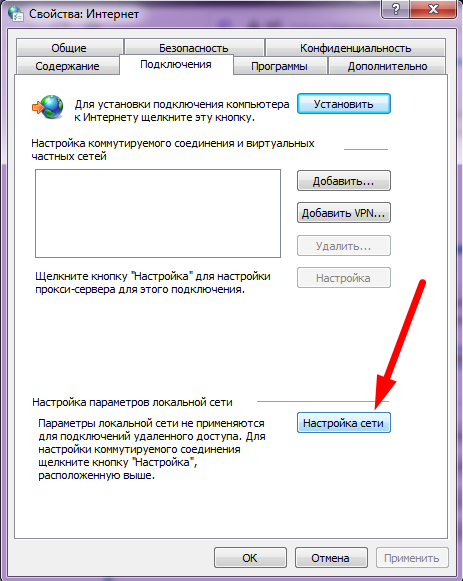
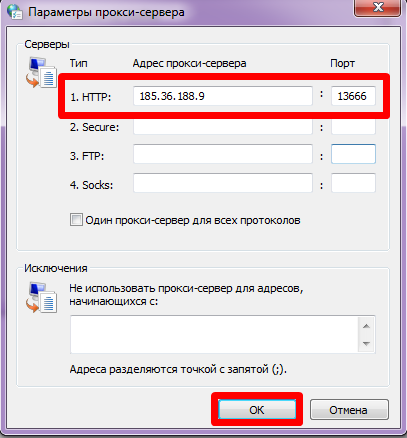
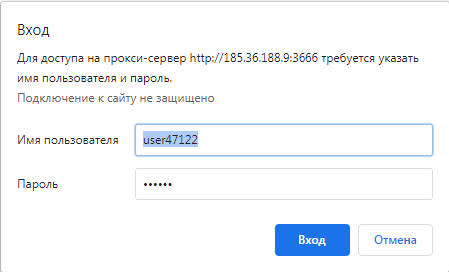
Restart Google Chrome. A window will appear. Enter the username and password of the address there and click “Login”. If the window does not appear, restart the browser again.
Mozilla Firefox
Setting up a proxy in the Firefox browser consists of 2 steps. Let's analyze each of them separately.
Step 1
We do the following:
- Open the address bar and enter about:profile.
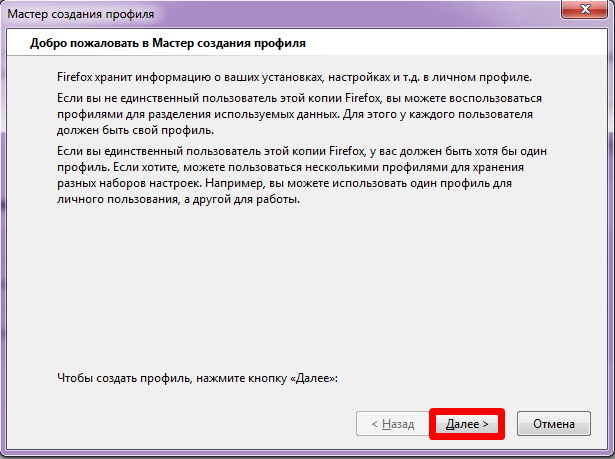
- Click "Create a new profile".
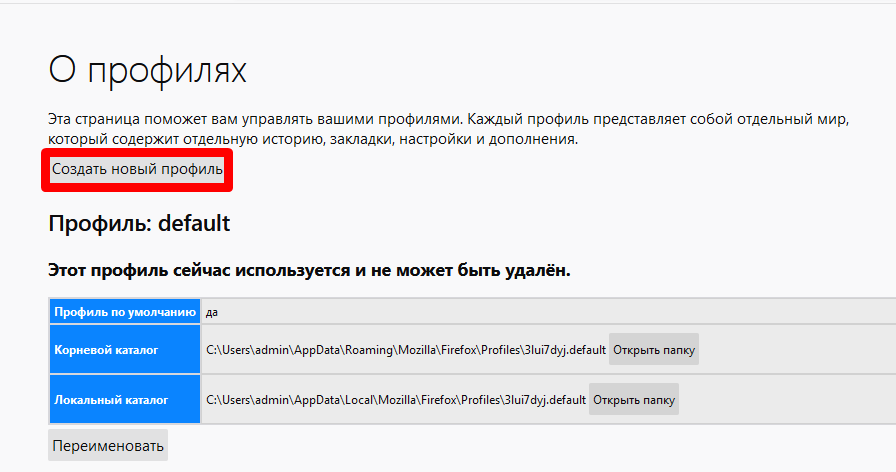
- We click "Next".
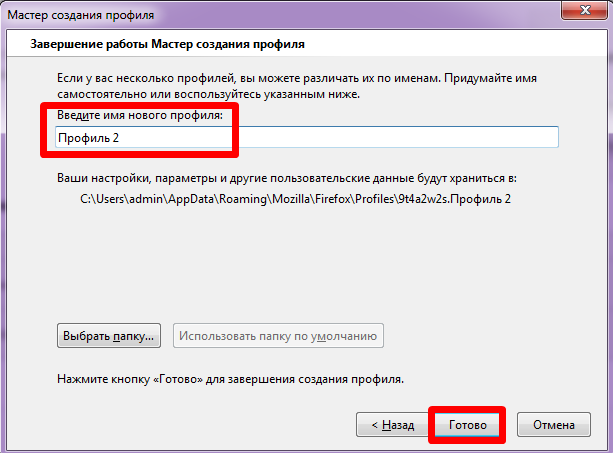
- Give the new profile a name and click Finish.
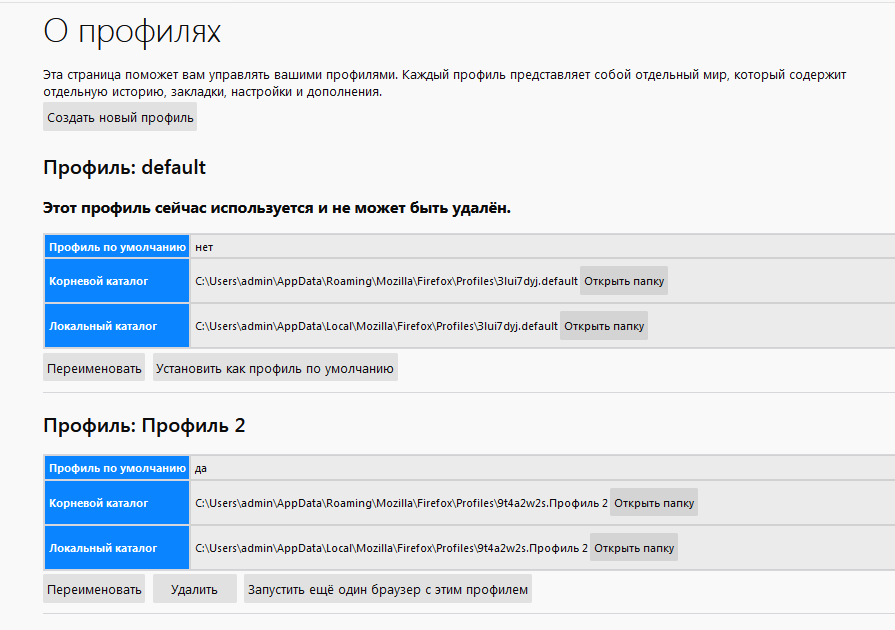
- A page with current accounts will open.
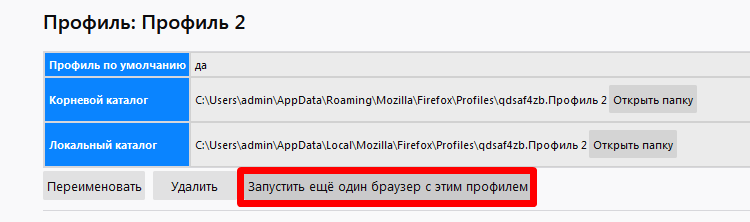
- Click "Launch another browser with this profile".
Now it all comes down to setting up an intermediate server.
Step 2
There are two ways to connect IP in Mozilla Firefox: standard and using an extension. We will show the second method because it works for 100% users. In the case of the standard method, not everyone has a window for entering the IP login and password, because of this it is not possible to work in the browser through a proxy.
For example, here is the FoxyProxy Standard plugin.
The algorithm is this:
- Click on the extension icon.
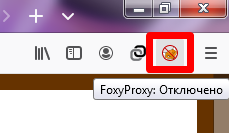
- We click "Settings".
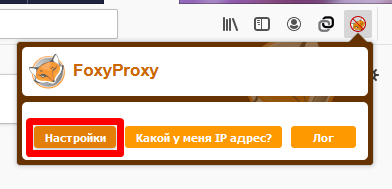
- Select "Add".
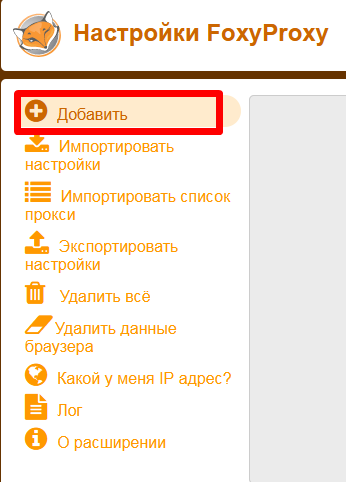
- If you switch between proxies, then give a name to each of them so as not to get confused where which one is.
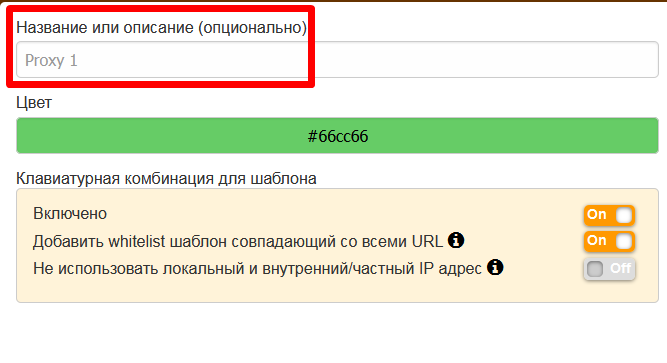
- Select the type of IP.
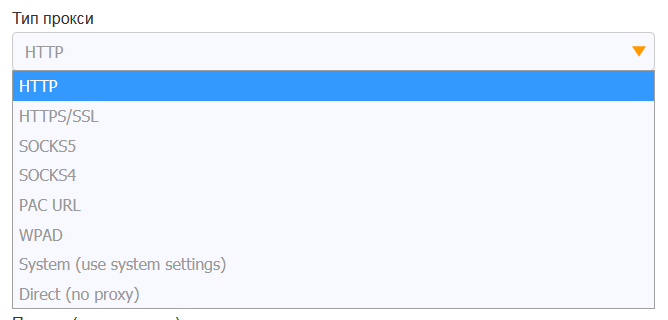
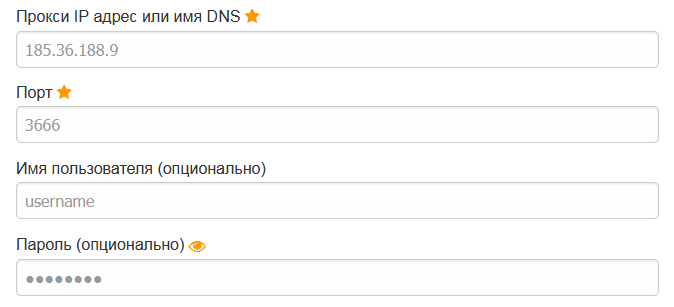
- Enter the IP address, port, login and password of the intermediate server.
- The main page will open. Select from the list of added proxies the one that we will use now. If you added one, select it.
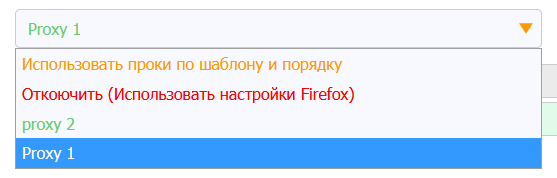
- If the extension does not want to connect the IP and will display “Disable (Use Firefox settings)”, refresh the page and specify the desired proxy again.
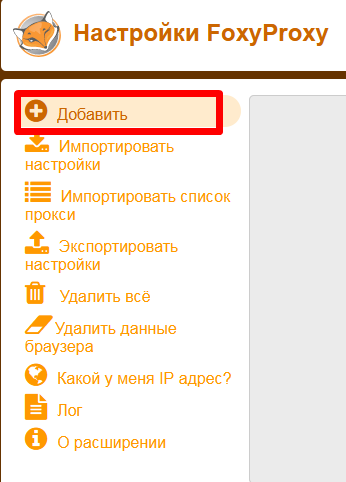
Now click on “What is my IP address?”.
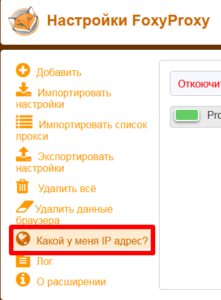
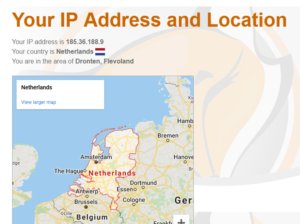
If the plugin shows the IP of another country, then the proxy is working.
safari
You can't create multiple profiles in Safari. You can only open a tab in private browsing mode. It will turn out like this: you will have one tab with your personal Instagram profile, the other with a work one.
We have compiled a rating of proxy services on our website. The IP of each seller was tested by ourselves, so the top turned out to be as objective as possible. Click on the "Browse" button to learn more about the supplier. Click on the "Go" button - and the seller's website will open.