Changing your IP address by connecting to the Internet through a VPN is not enough to protect personal data. Websites will still identify you and link your online activities to you based on your browser configuration.
The more effort you put into avoiding tracking (for example, by using privacy plugins), the more likely you are to have a suspicious configuration or browser fingerprint.
It's like wearing a ski mask to a party. Your face is hidden, but you still stand out in the crowd with a goofy look. Everything you do will be suspicious. The same goes for your online presence and websites will block accounts or restrict access to their features.
Your browser is your identity. Kameleo allows you to protect it. Kameleo is a simple powerful tool that makes it easy to create, save and load multiple profiles. After you install Kameleo, your browser fingerprint will be perceived differently by websites. Create as many configurations as you want.
Kameleo provides the ability to protect the user by overcoming JavaScript fingerprinting technologies, including HTTP client prompts, navigator, screen, time zone, geolocation API, and more. The toolkit hinders websites from trying to get the actual IP address, modify WebGL, define fonts based on CSS, and even protect against WebRTC leaks.
Kameleo allows you to manage all your browser profiles in one place. Each profile includes all settings and data such as cookies, passwords, browser extensions, history, etc. This also allows team members to manage multiple browser accounts together. Save time and money with browser profile transfer and sharing.
Kameleo allows you to browse the web using various proxy providers.
Proxy settings in Kameleo
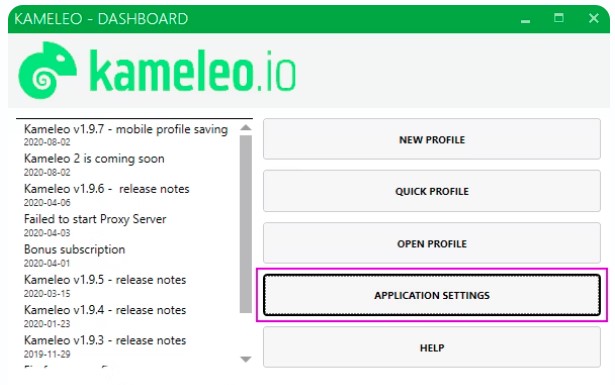
The browser is provided free of charge. After installation, you must create a user profile. The lack of translation into Russian complicates the work with the browser a little. However, we have prepared step-by-step guides for setting up a proxy in Kameleo. The first concerns the proxy settings for the entire application. If you are not using a separate profile, then when you open a new tab, the global settings will apply. So:
- Go to the browser and open the section application settings.
- In the next window, enter the proxy server details in the Global proxy settings section. In the Upstream Proxy Type field, select HTTPS as the data encryption protocol.
- Add proxy data: IP, port, login and password provided by the provider after order payment.
- Next, click the "OK" button to save the data.
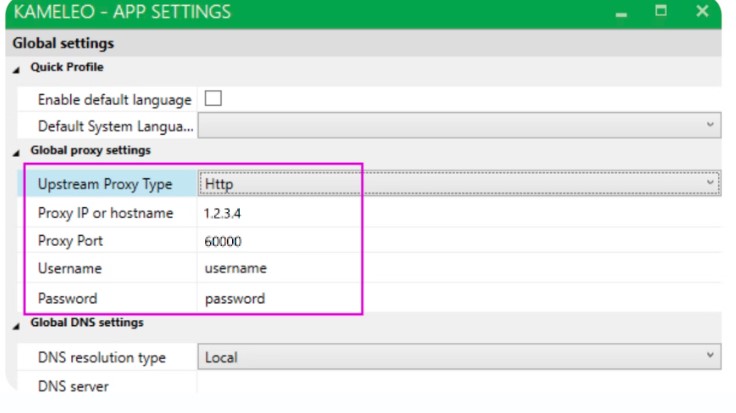
Ready. This is how you added the global proxy settings to Kameleo.
Now let's look at how to configure individual proxy profiles:
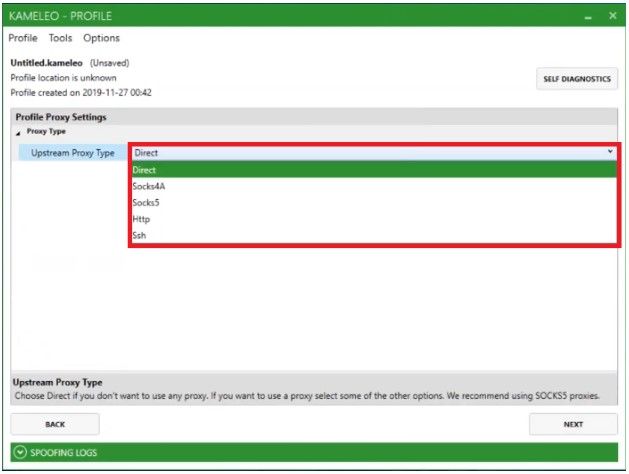
- Click the New Profile button.
- First select the type of proxy protocol. If you use a private proxy server, then you can find this information in your personal account settings.
- Next, enter the IP.
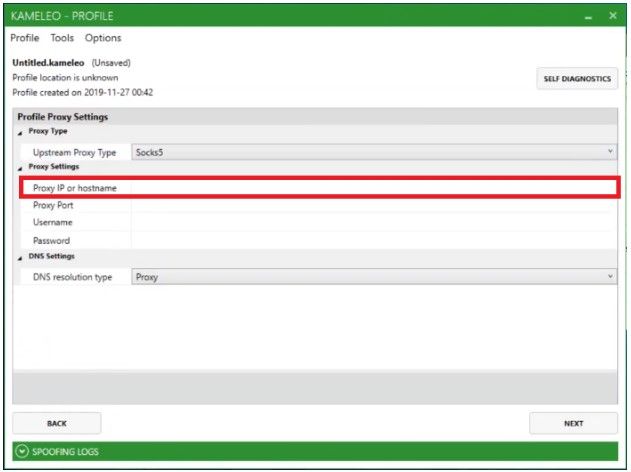
- Enter a port value.
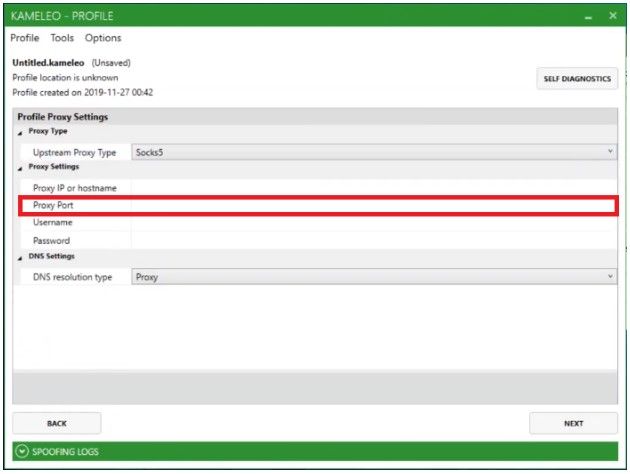
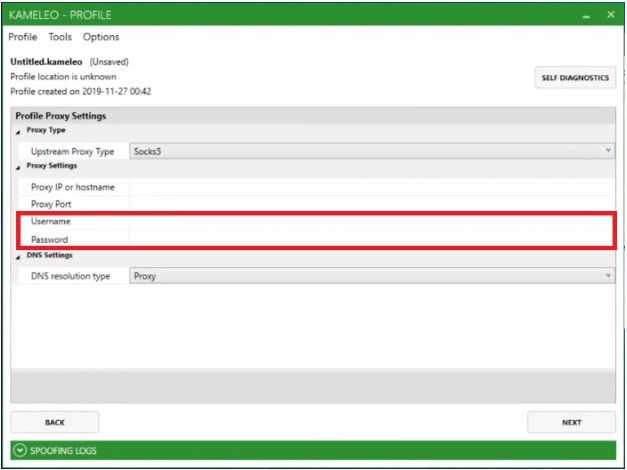
- If you have a private proxy server, then enter your login in the Username field and password in the Password field. Next, click the Next button.
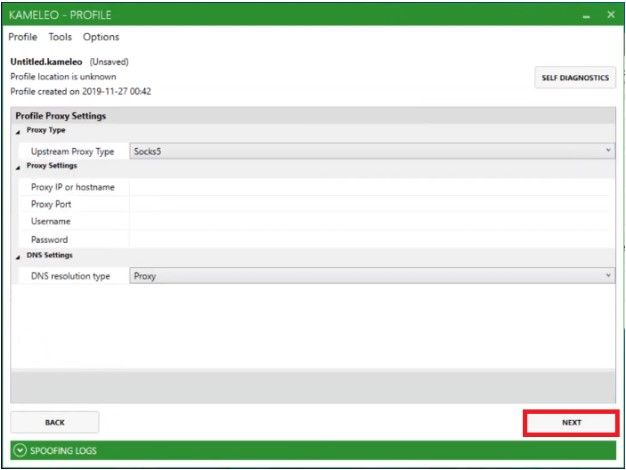
Ready. You have created a new profile and can use it to work with new tabs. As you can see, setting up a proxy in Kameleo is simple. You can add as many proxy profiles as you want and stay as anonymous and secure as possible.